

Prerequisites
- Chatbox Desktop installed
- An A2Agent API key — sign up at a2agent.me/register to get one
- API request URL:
https://api.a2agent.me/v1
Setup
1. Add a Provider
Open Chatbox. On the home page, go to Settings → Model Provider, then click Add.2. Fill in the Provider Information
- Provider Name: Custom, e.g.
A2Agent - API Mode:
OpenAI API Compatible - API Key: Your A2Agent API key
- API Request URL:
https://api.a2agent.me/v1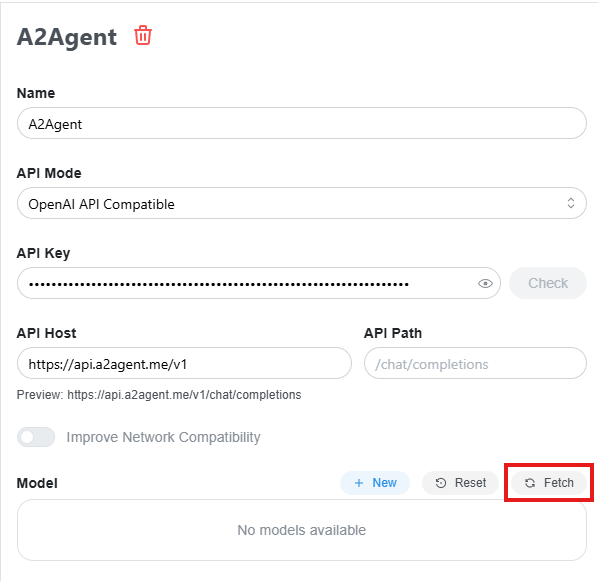
3. Fetch and Select Models
In the model configuration section, click Fetch to get the model list. After Chatbox fetches the models from A2Agent, select the models you want to use and save the provider configuration.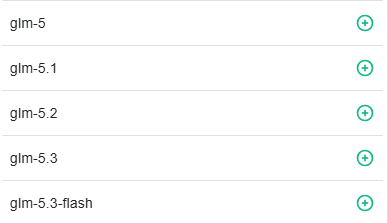
The model list will be updated dynamically as models evolve.
Start Using A2Agent Models
After the configuration is saved, go back to the chat page in Chatbox, switch to the A2Agent provider in the model picker, and choose an enabled model to start chatting.Troubleshooting
- The model list fails to load: Verify that your API key is valid, your account has available balance, and your network can reach
https://api.a2agent.me/v1. - The model list is empty: Make sure the provider information and model configuration were saved, then fetch the model list again.
- Models are still unavailable: Restart Chatbox and try again.