> ## Documentation Index
> Fetch the complete documentation index at: https://docs.a2agent.me/llms.txt
> Use this file to discover all available pages before exploring further.
# Use A2Agent Models with Open Code Desktop
> OpenCode Desktop accepts custom OpenAI-compatible providers in Settings. Add A2Agent, attach one or more models, and start chatting right away.
OpenCode Desktop accepts custom OpenAI-compatible providers from its Settings panel. This guide adds A2Agent as a provider and attaches one or more models so you can start chatting right away.
## Prerequisites
* **Open Code Desktop** is installed. [Download Open Code Desktop](https://opencode.ai/download)
* An A2Agent API key — [sign up at a2agent.me/register](https://a2agent.me/register) to get one
## Add a Provider
1. Open **Open Code Desktop**.
2. Click **Home** in the top-left corner, or press **Ctrl+B**.
 3. Go to **Settings** → **Providers** → **Show More Providers**.
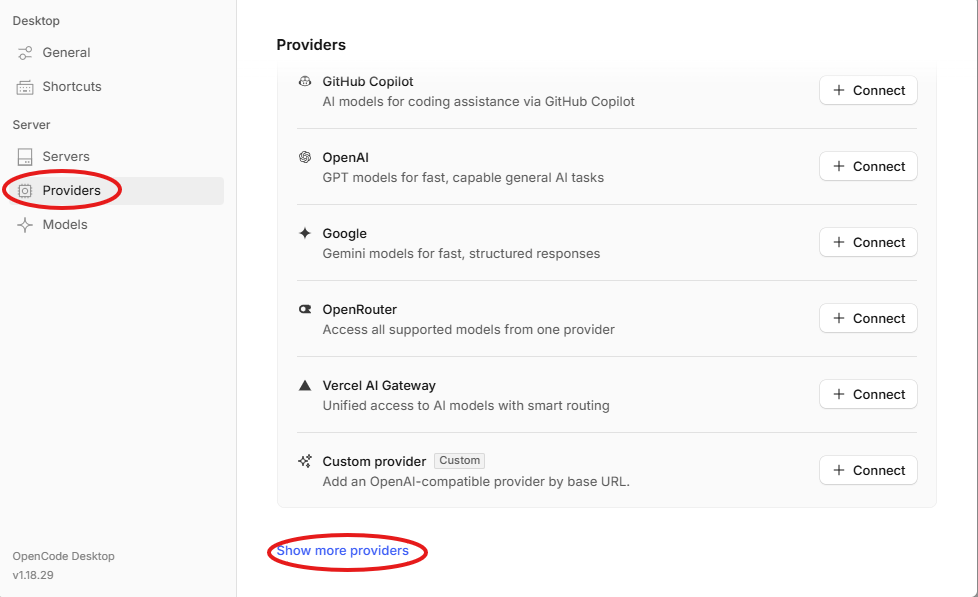 4. Choose **Custom OpenAI-compatible provider**.
## Fill in the Provider Information
| Field | Value |
| - | - |
| **Provider ID** | A unique identifier in the configuration file. Use only lowercase letters, numbers, hyphens, or underscores, for example `a2agent-opencode` |
| **Display Name** | Custom, for example `a2agent-opencode` |
| **Base URL** | `https://api.a2agent.me/v1`, which must end with `/v1` |
| **API Key** | Your A2Agent API key |
## Add Models
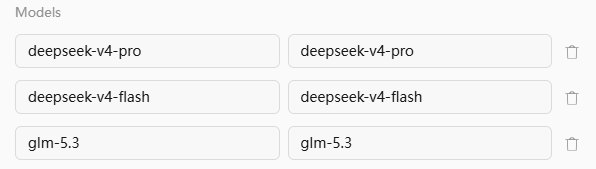
Enter the **model-id**. For available IDs, see [A2Agent Models](https://a2agent.me/models).You can add one or more models.
4. Choose **Custom OpenAI-compatible provider**.
## Fill in the Provider Information
| Field | Value |
| - | - |
| **Provider ID** | A unique identifier in the configuration file. Use only lowercase letters, numbers, hyphens, or underscores, for example `a2agent-opencode` |
| **Display Name** | Custom, for example `a2agent-opencode` |
| **Base URL** | `https://api.a2agent.me/v1`, which must end with `/v1` |
| **API Key** | Your A2Agent API key |
## Add Models
Enter the **model-id**. For available IDs, see [A2Agent Models](https://a2agent.me/models).You can add one or more models.
 ## Select a Model and Start Chatting
Open OpenCode, and in **Select model**, choose the model you just added under the `a2agent-opencode` group, for example `glm 5.3`.
## Select a Model and Start Chatting
Open OpenCode, and in **Select model**, choose the model you just added under the `a2agent-opencode` group, for example `glm 5.3`.
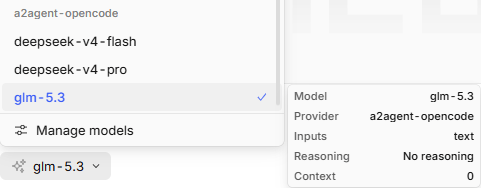 Send any message, such as `hi`; if you receive a normal reply, the configuration is successful.